Classroom Timer
Huge digits for the projector, silent visual mode and activity presets.
Runs entirely in your browser. Your files never leave your device. How we handle data
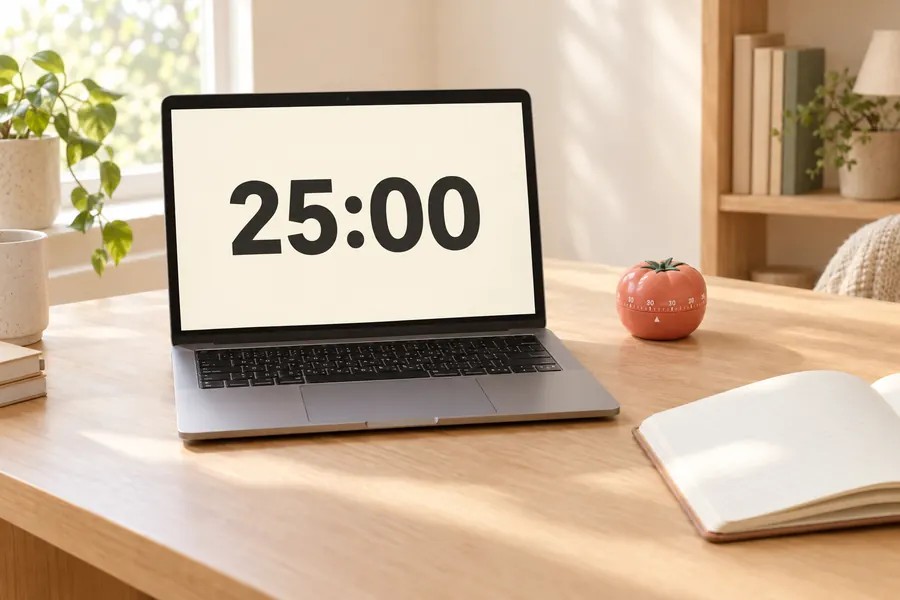
How to use the classroom timer
- Step 1
Choose a preset
Tap a common activity length: 2, 5, 10, 15, 20 or 45 minutes, or type your own.
- Step 2
Project it
Click Full screen so the whole class can read the digits from the back of the room.
- Step 3
Choose silent or sound
Turn the alarm off for a silent visual finish, or leave it on to signal the end of an activity.
Frequently asked questions
Can students see the timer from the back of the room?
Yes. Full-screen mode scales the digits to the size of your screen or projector, with a high-contrast colour change in the last minute.
Does it work without sound?
Yes. Switch the alarm off and the timer finishes with a visual flash only, which is useful during tests and quiet work.
Can I run several timers for group work?
Open the page in several tabs or windows; each timer runs independently and shows its remaining time in the tab title.
Related tools
- Online Timer
- Presentation Timer · planned
- Screen Capture